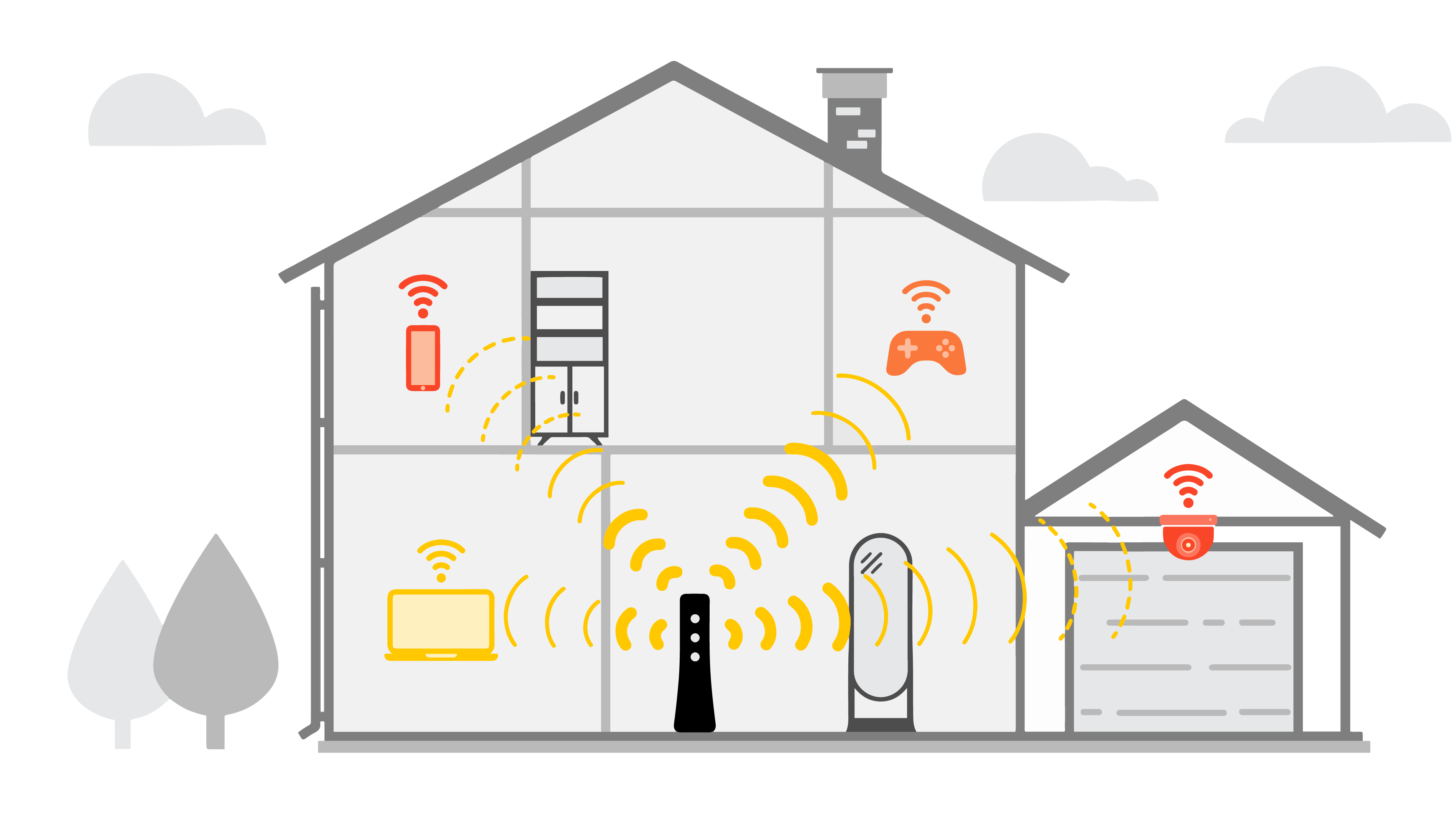
Introduction: Why is Your Apartment WiFi Weak?
Living in an apartment often comes with its own set of challenges, and one of the most common is dealing with weak WiFi signal strength. Whether you're streaming your favorite shows, working from home, or just browsing the web, a reliable internet connection is essential. But why is your WiFi so weak in your apartment, and more importantly, what can you do about it?
Several factors can contribute to poor WiFi performance in an apartment setting. These include:
- Interference from other devices: Microwaves, Bluetooth devices, and even other WiFi networks can interfere with your signal.
- Building materials: Concrete walls, metal studs, and other dense materials can block WiFi signals.
- Router placement: A router tucked away in a corner or hidden behind furniture won't perform optimally.
- Outdated equipment: An old router or modem might not be able to handle modern internet speeds or provide adequate coverage.
- Network congestion: Too many devices connected to the same network can slow things down.
Fortunately, there are several steps you can take to improve your WiFi signal strength and enjoy a faster, more reliable internet connection in your apartment.
1. Optimize Router Placement for Better WiFi Coverage
Where you place your router is one of the most important factors affecting your WiFi signal strength. A central, elevated location is generally best.
Find the Optimal Location
Avoid placing your router in corners, closets, or behind large pieces of furniture. These obstructions can significantly weaken the signal. Instead, try to position your router in a central location within your apartment, preferably on a table or shelf. The higher up you can place it, the better the signal distribution will be.
Consider the Antenna Direction
If your router has adjustable antennas, experiment with different orientations. For single-story apartments, positioning the antennas vertically often works best. If you live in a multi-story apartment, try angling one antenna vertically and the other horizontally to provide broader coverage.
2. Minimize Interference from Other Devices
Interference is a major culprit behind weak WiFi signals. Identifying and mitigating sources of interference can significantly improve your connection.
Identify and Eliminate Interference Sources
Common sources of interference include microwaves, Bluetooth devices (speakers, headphones), and cordless phones. Try to keep your router away from these devices. If you have a microwave running frequently, consider moving your router to a different location.
Change Your WiFi Channel
Your router broadcasts on a specific WiFi channel. If multiple routers in your building are using the same channel, it can lead to congestion and interference. You can use a WiFi analyzer app (available for smartphones and computers) to see which channels are least crowded and then change your router's channel settings accordingly. This is usually done through your router's web interface.
3. Upgrade Your Router and Modem
Outdated or underpowered equipment can severely limit your WiFi performance. Upgrading to a newer router and modem can make a significant difference.
Consider a Modern Router
Older routers may not support the latest WiFi standards (like Wi-Fi 6 or Wi-Fi 6E), which offer faster speeds and better performance. A newer router with better processing power and more advanced features can significantly improve your WiFi signal strength and coverage. Look for routers with beamforming technology, which focuses the WiFi signal towards your devices, and MU-MIMO (Multi-User, Multiple-Input and Multiple-Output), which allows the router to communicate with multiple devices simultaneously without slowing down.
Check Your Modem Compatibility
Make sure your modem is compatible with your internet plan. An outdated modem might not be able to handle the speeds you're paying for. Contact your internet service provider (ISP) to confirm that your modem is up to date and capable of delivering the speeds you expect.
4. Use a WiFi Extender or Mesh Network
If your apartment is large or has areas with particularly weak WiFi signals, a WiFi extender or mesh network can help to extend your coverage.
WiFi Extenders
A WiFi extender (also known as a repeater) amplifies your existing WiFi signal and rebroadcasts it, effectively extending the range of your network. Place the extender halfway between your router and the area with weak signal strength for optimal performance. Keep in mind that extenders can sometimes reduce the overall speed of your network, so choose a reputable brand and model.
Mesh Networks
A mesh network consists of multiple nodes that work together to create a single, unified WiFi network. Unlike extenders, mesh networks seamlessly hand off your devices from one node to another as you move around your apartment, providing a more consistent and reliable connection. Mesh networks are generally more expensive than extenders but offer superior performance and coverage.
5. Limit the Number of Connected Devices
Too many devices connected to your WiFi network can strain your router and slow down your internet speed. Prioritizing devices and limiting unnecessary connections can improve performance.
Prioritize Devices
Many modern routers offer Quality of Service (QoS) settings that allow you to prioritize certain devices or applications over others. For example, you can prioritize your work computer or streaming devices to ensure they receive the bandwidth they need for optimal performance. This can be configured through your router's web interface.
Disconnect Unused Devices
Make sure to disconnect any devices that you're not actively using from your WiFi network. Even devices that are idle can consume bandwidth in the background. This includes smartphones, tablets, and smart home devices.
6. Secure Your WiFi Network
An unsecured WiFi network can be vulnerable to unauthorized access, which can slow down your internet speed and compromise your security. Securing your network with a strong password and encryption is essential.
Use a Strong Password
Choose a strong, unique password for your WiFi network that is difficult to guess. Avoid using common words, personal information, or easily predictable patterns. A combination of uppercase and lowercase letters, numbers, and symbols is ideal.
Enable WPA3 Encryption
WPA3 is the latest and most secure WiFi encryption protocol. If your router supports WPA3, enable it for the best possible security. If your router only supports older protocols like WPA2 or WEP, make sure to use WPA2, as it is significantly more secure than WEP. This setting can usually be found in your router's web interface under the security or wireless settings.
7. Update Your Router's Firmware
Keeping your router's firmware up to date is crucial for maintaining optimal performance and security. Firmware updates often include bug fixes, performance improvements, and security patches.
Check for Updates Regularly
Most routers have a built-in feature that allows you to check for firmware updates automatically. You can also manually check for updates through your router's web interface. Refer to your router's documentation for instructions on how to update the firmware.
8. Consider a Wired Connection
While WiFi is convenient, a wired Ethernet connection provides a more stable and reliable connection, especially for devices that require high bandwidth, such as gaming consoles or desktop computers.
Connect Directly to Your Router
If possible, connect your most important devices directly to your router using an Ethernet cable. This will bypass the WiFi signal altogether and provide a faster, more stable connection. Even if it requires running a cable across the room, the improved performance may be worth it.
9. Contact Your Internet Service Provider (ISP)
If you've tried all of the above steps and your WiFi signal is still weak, the problem may lie with your internet service provider. Contact your ISP to inquire about potential issues with their service or equipment.
Check for Outages
There may be a temporary outage in your area that is affecting your internet connection. Your ISP can confirm whether there are any known outages and provide an estimated time for resolution.
Inquire About Upgrades
Your ISP may offer faster internet plans or upgraded equipment that can improve your WiFi performance. Inquire about available options and pricing.

0 Komentar